




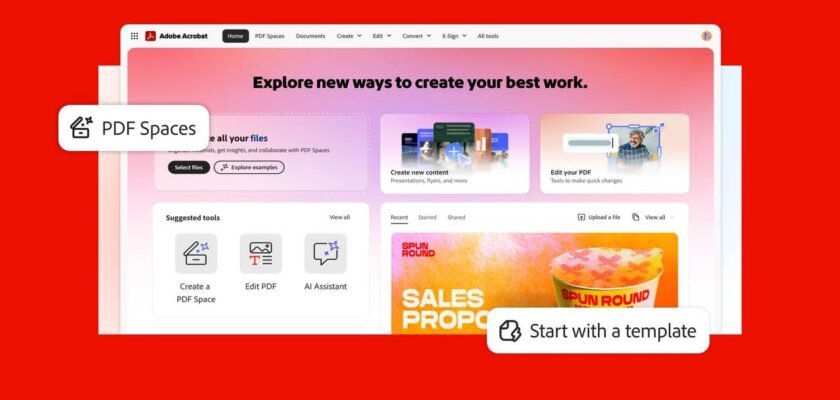
From reducing PDF file sizes to signing documents online, discover how Adobe Acrobat’s free tools can make everyday PDF tasks easier.
PDFs are something we deal with almost every day. Whether you’re creating an invoice, filling out an application or a KYC form, or creating a contract, there’s a good chance you’ll need to work with a PDF at some point.
The trouble starts when you need to make a quick change. Maybe you need to combine several files into one document, reduce a PDF’s size before uploading it, or sign a file without printing it.
That’s where Adobe Acrobat comes in.
Most people know Acrobat as a tool for opening and reading PDF files. But Adobe also offers a collection of online PDF tools that you can use directly in your browser. You can convert files, compress documents, organize pages, add signatures, and handle plenty of other everyday PDF tasks without installing the desktop application.
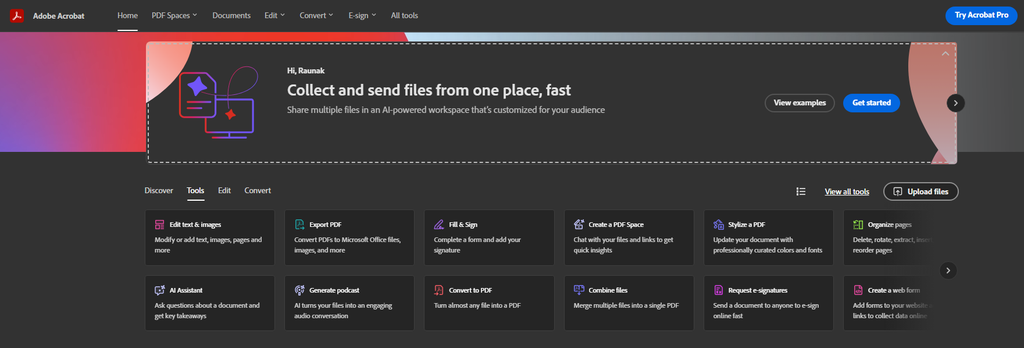

Adobe Acrobat online (Acrobat.com) is a free, browser-based set of 25+ PDF tools from Adobe, the company that invented the PDF format. In India, a free Adobe account gives unlimited use of these tools with no subscription or credit card; AI features are excluded.
Adobe has also introduced AI-powered features that can help you summarize lengthy documents and find information by asking questions.
So, what can you actually do with Adobe Acrobat online, which tools are free, and when might its AI features come in handy? Let’s take a look.
Adobe Acrobat online tools at a glance (India, free with a free Adobe account)
Task Acrobat online tool What it does Free? Edit/annotate Edit PDF Add text boxes, sticky notes, highlights and drawings Yes Reduce file size Compress PDF Shrink a PDF, with targets from 50KB to 10MB Yes Convert PDF to Word, PDF to Excel, PDF to PPT, JPG to PDF, Word to PDF Change formats online Yes Organise pages Merge, Split, Reorder, Delete, Rotate, Insert pages Rearrange and combine pages Yes Fill and sign Fill & Sign Fill forms and add a signature Yes Protect Protect PDF Add a password to a PDF Yes AI on PDFs Chat with PDF, summary tools Ask questions and summarise No – AI features are excluded from the free tools
Editing PDFs Online
How can I edit a PDF online for free? With Acrobat’s free online PDF editor, you can add text boxes, sticky notes, highlights, and drawings to a PDF in your browser; changing the text that is already in the PDF needs a paid Acrobat plan or the 7-day Acrobat Pro free trial.
Let’s say someone sends you a PDF and you need to add a few comments, highlight important information, or mark sections that need to be changed.
Instead of printing the document or opening it in another application, you can use Acrobat’s online editing and annotation tools.
These tools let you add text, highlight them, underline content, draw on pages, and add comments. They’re useful for reviewing a proposal, sharing feedback on a report, or pointing out changes before sending a document back.
However, there’s an important distinction here. Adding comments or text to a PDF isn’t the same as editing all the existing text and images inside it. More advanced editing capabilities may require a paid Acrobat plan.
How can I edit text directly inside a PDF document? Open the PDF in Acrobat Standard or Pro, choose the Edit PDF tool, click the text you want to change, and type.
If you only need to mark up a document or add a few notes, the free online tools are a convenient place to start.
Compress PDFs
How do I make a PDF smaller to meet upload size limits? Upload it to Acrobat’s free Compress PDF tool, which has dedicated options for common targets such as 100KB, 200KB, 500KB, 1MB and 10MB, then download the smaller file.
File-size limits can be frustrating, especially when you’re submitting documents through an online portal.
You might have a scanned document that’s several MBs, only to discover the website accepts files up to a much smaller limit. Acrobat’s online compression tool can reduce the size of a PDF, making it easier to upload, email, or share.
For example, if a portal requires a document smaller than 200KB, you can try compressing the PDF before uploading it. The result will depend on the original file and the amount of compression applied.
This is a very useful tool if you regularly submit application forms, certificates, or other documents online.
Convert PDFs to Word, Excel, and Other Formats
What are the best free web-based tools to convert PDF to Word? Acrobat’s online PDF to Word converter is a free option: upload the PDF, convert it, and download an editable Word file.
PDFs are great for sharing documents because they help preserve the layout. But they’re not always convenient when you need to edit the contents.
For example, someone might send you a PDF that you need to update in Word. Or you might have a collection of images that you want to combine into a single PDF.
Acrobat offers online conversion tools for several common formats, including:
- PDF to Word
- Word to PDF
- PDF to Excel
- PDF to PowerPoint
- JPG to PDF
- PDF to JPG
These tools can save you from installing separate conversion software for different tasks.
Just keep in mind that conversion doesn’t always preserve everything perfectly. Complicated tables, fonts, and page layouts may look different in the converted file, so give it a quick review before sharing or editing it further.
Merge, Split, and Organize PDF Pages
How do I merge PDF files online for free? Use Acrobat’s online Merge PDFs tool to combine several files into one PDF; Split PDF, Reorder PDF pages, Delete PDF pages, Rotate PDF pages, and Insert PDF pages are available as separate online tools.
Sometimes, the problem isn’t the content of a PDF but how the pages are arranged.
Imagine you have several invoices that need to be sent together.. Managing each file separately can quickly become tedious.
Acrobat offers tools to merge multiple PDFs into one file, split a document into smaller files, rearrange pages, and remove unnecessary sections. These features are handy when preparing documents for a client, organizing business records, or combining paperwork for an application.
Instead of sending several attachments and asking someone to go through them individually, you can organize everything into a single PDF.
Fill Out Forms and Sign PDFs Online
What is a free way to sign a PDF online in 2026? Acrobat’s free Fill & Sign tool lets you fill in form fields, tick boxes, and add your signature to a PDF in your browser.
Printing a document just to fill in a few fields or add your signature isn’t always practical.
Acrobat’s online tools let you fill out supported forms and add a signature to documents without going through the print-and-scan process.
This can be useful for freelancers handling client paperwork, small-business owners, or anyone who regularly receives forms that need to be signed.
Protect PDFs With A Password
How do I password protect a PDF for free? Upload your PDF to Acrobat’s online Protect PDF tool, set and confirm a password, apply the protection, and download the secured file.
If you need to share a PDF with someone containing sensitive material, Acrobat also offers an online password-protection tool. You can use it to restrict access to a document.
Of course, password protection isn’t a complete security solution. Use a strong password, share it carefully, and consider whether the document should be uploaded to an online service in the first place.
Adobe Acrobat’s AI Features
So far, we’ve looked at tools for changing, converting, and organizing PDFs. But what if you don’t need to edit a document and simply want to understand what’s inside it?
This is where AI comes in.
Adobe offers AI-powered features that can help you work with the information in your documents instead of manually searching through every page.
For example, Acrobat AI Assistant can summarize lengthy PDFs and answer questions about their contents. If you’re reviewing a long report, you could ask for its main findings and then follow up with questions about specific details.
Some supported workflows also let you explore information across multiple documents, which can be useful when comparing reports or gathering research for a project.
Acrobat AI Assistant can provide citations to help you check where information comes from. You should still verify important figures and claims against the original document, as AI can sometimes misunderstand context or produce inaccurate answers.
These features can be useful for students, researchers, freelancers, and professionals who regularly deal with lengthy documents.
One thing to remember: Acrobat’s free online PDF tools and its AI features are separate offerings. AI access depends on the feature and eligible plan; it isn’t included as unlimited free access.
Is Adobe Acrobat Worth Using?
Is Adobe Acrobat online free? Yes. In India, a free Adobe account gives unlimited use of the free online PDF tools with no subscription or credit card, but AI features are not included.
If you regularly work with PDFs, Adobe Acrobat’s online tools are worth exploring.
You can handle everyday tasks such as compressing files, converting documents, organizing pages, and signing forms without installing desktop software. Having these tools available in one place is also more convenient than searching for a different website every time you need to work with a PDF.
The AI features are an added benefit if you often need to read lengthy reports or find information buried inside documents.
You don’t necessarily need a paid subscription, though. If you only need to merge a few files or compress a document occasionally, the free online tools may be enough. If you frequently need advanced PDF editing or AI-assisted document workflows, you can explore the additional features offered by Adobe’s paid plans.
Conclusion
Working with PDFs shouldn’t require a separate application for every small task.
Whether you need to reduce a file’s size, convert a document into Word, combine several invoices, or sign a form, Adobe Acrobat offers free online tools that can help you get the job done directly in your browser.
And if you regularly deal with lengthy documents, its AI features offer another way to work with the information inside them, from generating summaries to answering questions about a report.
You might not need every feature Acrobat offers, but it’s worth knowing what’s available before installing another tool or paying for a subscription.
Visit Acrobat.com, choose the PDF tool you need, and give it a try.